> ## Documentation Index
> Fetch the complete documentation index at: https://support.annapurnaart.com/llms.txt
> Use this file to discover all available pages before exploring further.
# How to Upload Your Artwork
Congratulations on joining Annapurna Art!
If you haven't created your artist account yet, you can sign up here:
[**Sign Up as an Artist →**](https://artist.annapurnaart.com/signup)
Welcome to the Annapurna Art family. We're excited to have you as part of our growing community of artists and look forward to supporting your creative journey.
Once your account has been approved, you can begin listing your artworks through your Artist Dashboard.
***
## Artwork Upload Process
Uploading an artwork consists of **4 simple steps**. Complete each section carefully to help collectors discover your artwork and make informed purchasing decisions.
## Artist Dashboard
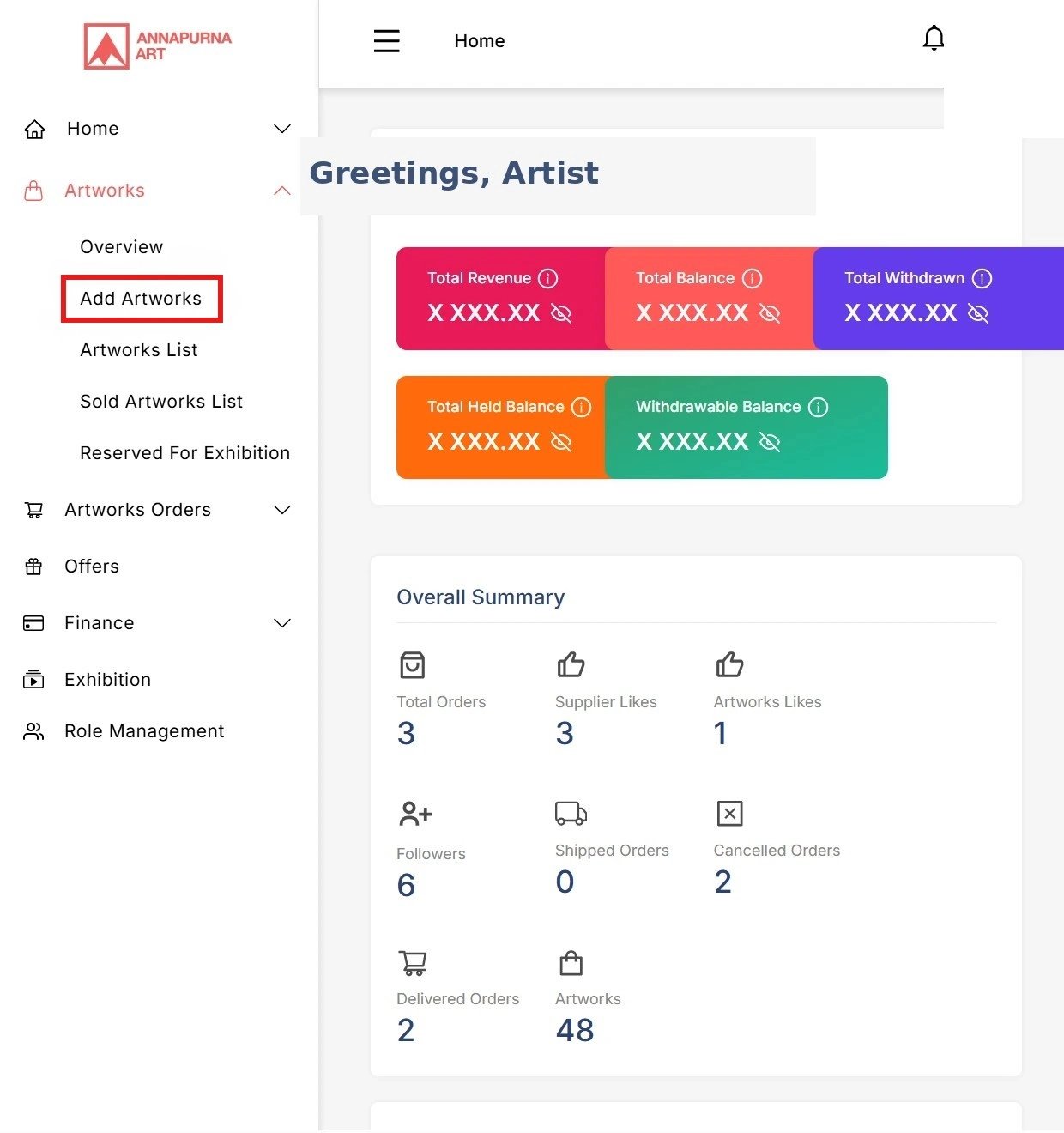
 Your **Artist Dashboard** is the central place for managing your Annapurna Art artist account. From here, you can update your profile (artist portfolio), upload artworks, manage sales, respond to offers, create virtual exhibitions, monitor performance, and access all the tools needed to grow your artistic career.
The dashboard includes the following sections:
View a summary of your account activity, recent sales, orders, and important updates.
Track artwork views, visitor engagement, and overall performance.
Create, edit, publish, and manage all of your artwork listings.
Review and respond to purchase offers submitted by collectors.
Monitor earnings, payment history, and withdrawal requests.
Create, publish, and manage immersive virtual exhibitions.
Invite assistants or team members and assign permissions to manage your account securely.
Track artwork sales, shipping progress, and completed deliveries.
Once you're familiar with the dashboard, you're ready to upload your first artwork.
Begin by clicking **Add Artwork** from your Artist Dashboard.
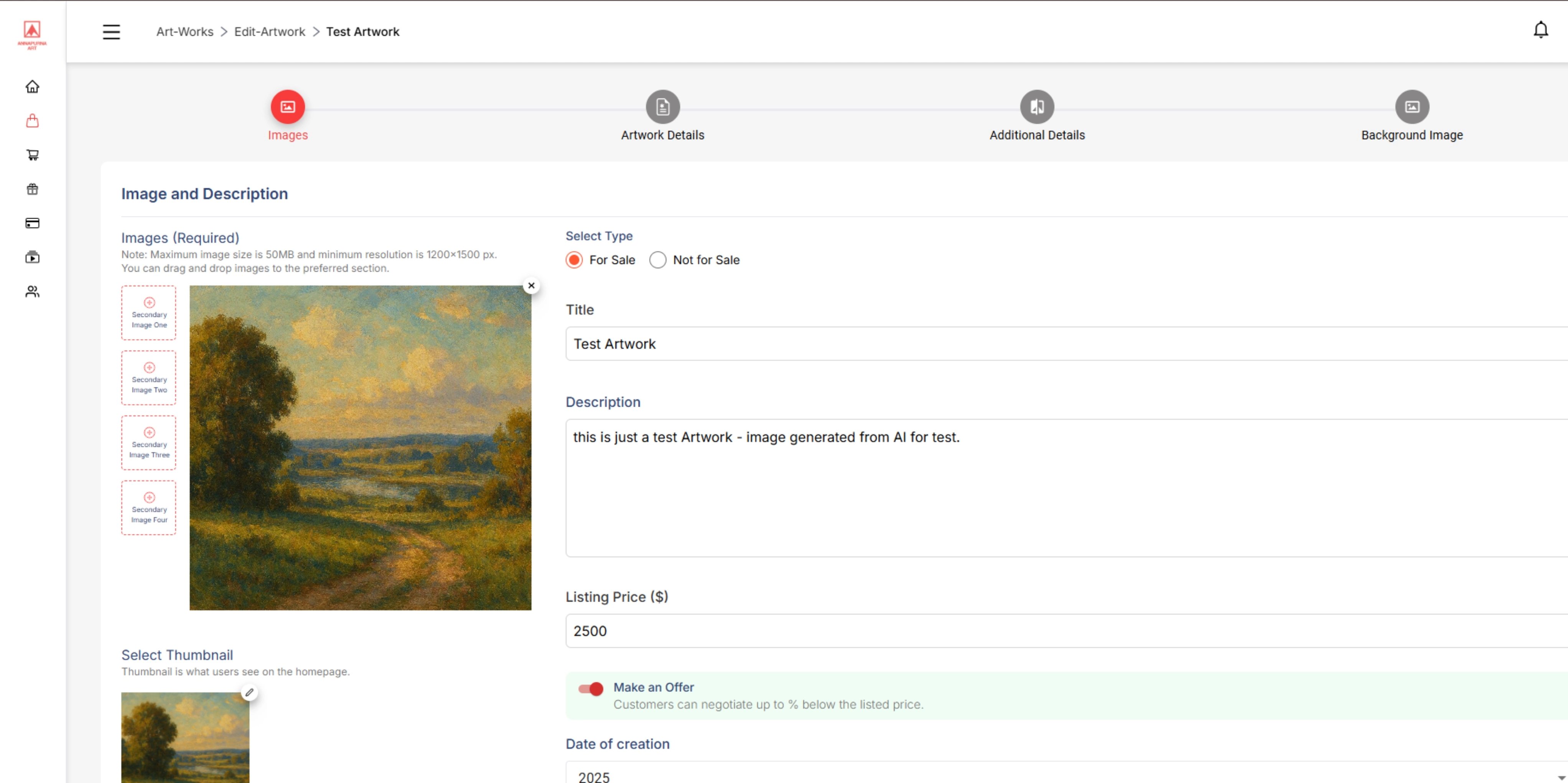
On this page, you will provide the basic information about your artwork, including:
* Upload the primary artwork image
* Select whether the artwork is available for sale
* Artwork title
* Artwork description
* Listed price
* Enable or disable **Make an Offer**
* Date of creation
> **Make an Offer**
>
> By enabling this option, collectors can submit purchase offers below the listed price. Offers are typically expected to be within a reasonable range of the listed price.
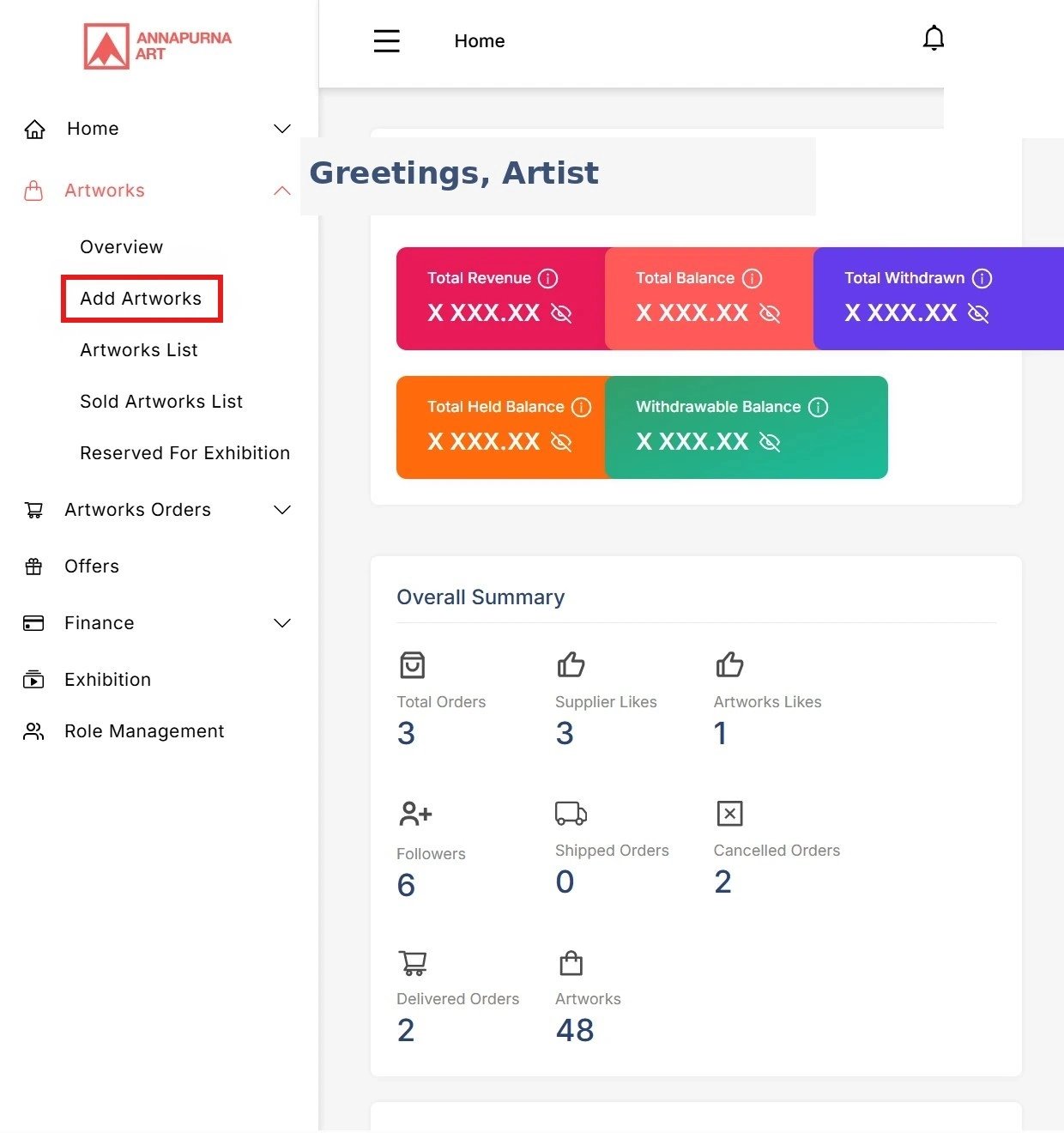
Your **Artist Dashboard** is the central place for managing your Annapurna Art artist account. From here, you can update your profile (artist portfolio), upload artworks, manage sales, respond to offers, create virtual exhibitions, monitor performance, and access all the tools needed to grow your artistic career.
The dashboard includes the following sections:
View a summary of your account activity, recent sales, orders, and important updates.
Track artwork views, visitor engagement, and overall performance.
Create, edit, publish, and manage all of your artwork listings.
Review and respond to purchase offers submitted by collectors.
Monitor earnings, payment history, and withdrawal requests.
Create, publish, and manage immersive virtual exhibitions.
Invite assistants or team members and assign permissions to manage your account securely.
Track artwork sales, shipping progress, and completed deliveries.
Once you're familiar with the dashboard, you're ready to upload your first artwork.
Begin by clicking **Add Artwork** from your Artist Dashboard.
On this page, you will provide the basic information about your artwork, including:
* Upload the primary artwork image
* Select whether the artwork is available for sale
* Artwork title
* Artwork description
* Listed price
* Enable or disable **Make an Offer**
* Date of creation
> **Make an Offer**
>
> By enabling this option, collectors can submit purchase offers below the listed price. Offers are typically expected to be within a reasonable range of the listed price.
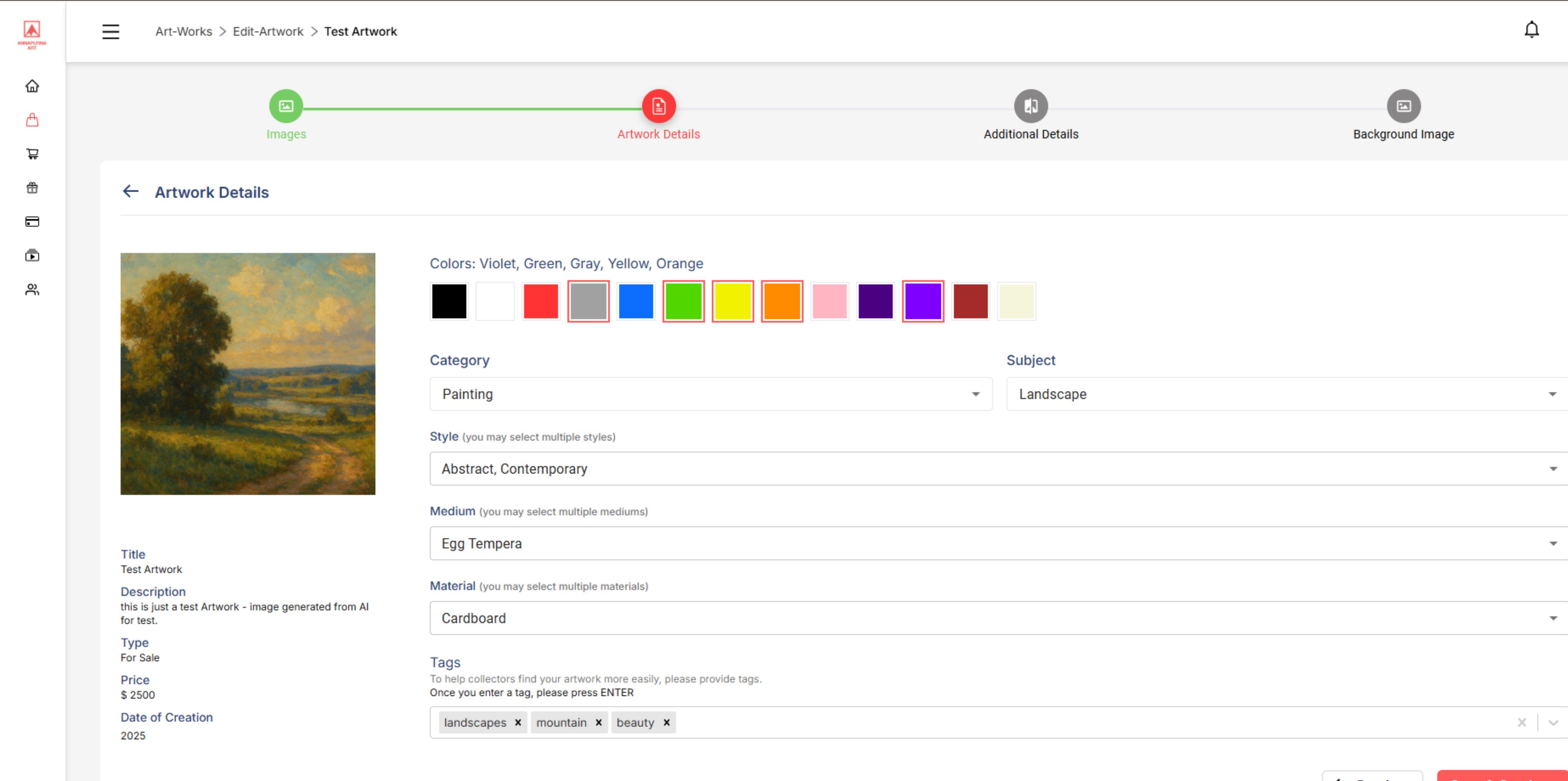
 The second page helps collectors discover your artwork through search and filtering.
Select the options that best describe your artwork:
* Dominant color(s)
* Artwork category
* Subject
* Style
* Medium
* Material
* Tags
These selections improve search results and help buyers find artworks that match their preferences.
The second page helps collectors discover your artwork through search and filtering.
Select the options that best describe your artwork:
* Dominant color(s)
* Artwork category
* Subject
* Style
* Medium
* Material
* Tags
These selections improve search results and help buyers find artworks that match their preferences.
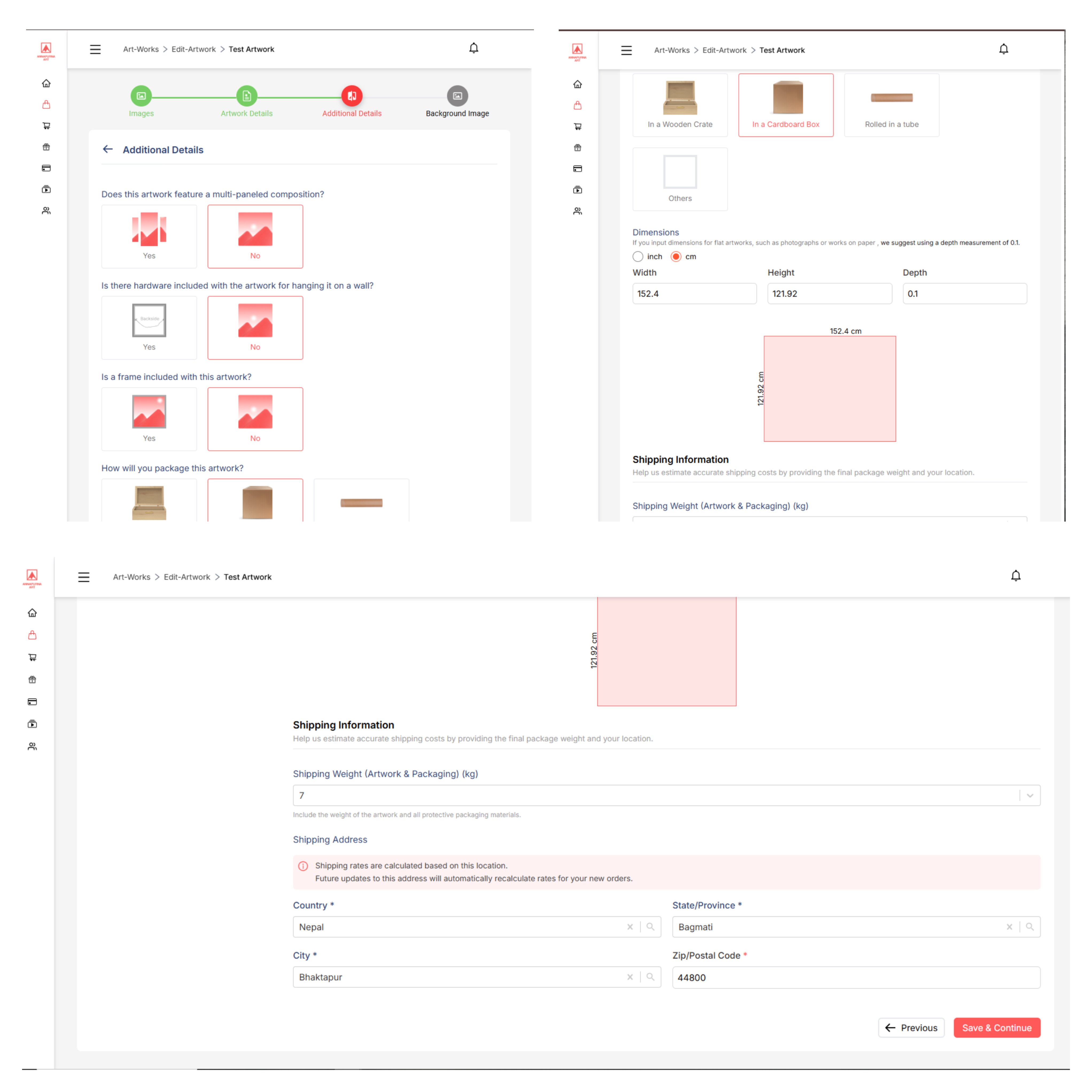
 Provide additional details about your artwork.
### Artwork Information
* Multi-panel composition
* Hanging hardware included
* Frame included
* Packaging method
### Dimensions
Enter the artwork dimensions in:
* Centimeters (cm)
* Inches (in)
### Shipping Information
Provide:
* Artwork weight
* Artwork pickup location
These details help us calculate shipping costs and prepare your artwork for delivery.
Provide additional details about your artwork.
### Artwork Information
* Multi-panel composition
* Hanging hardware included
* Frame included
* Packaging method
### Dimensions
Enter the artwork dimensions in:
* Centimeters (cm)
* Inches (in)
### Shipping Information
Provide:
* Artwork weight
* Artwork pickup location
These details help us calculate shipping costs and prepare your artwork for delivery.
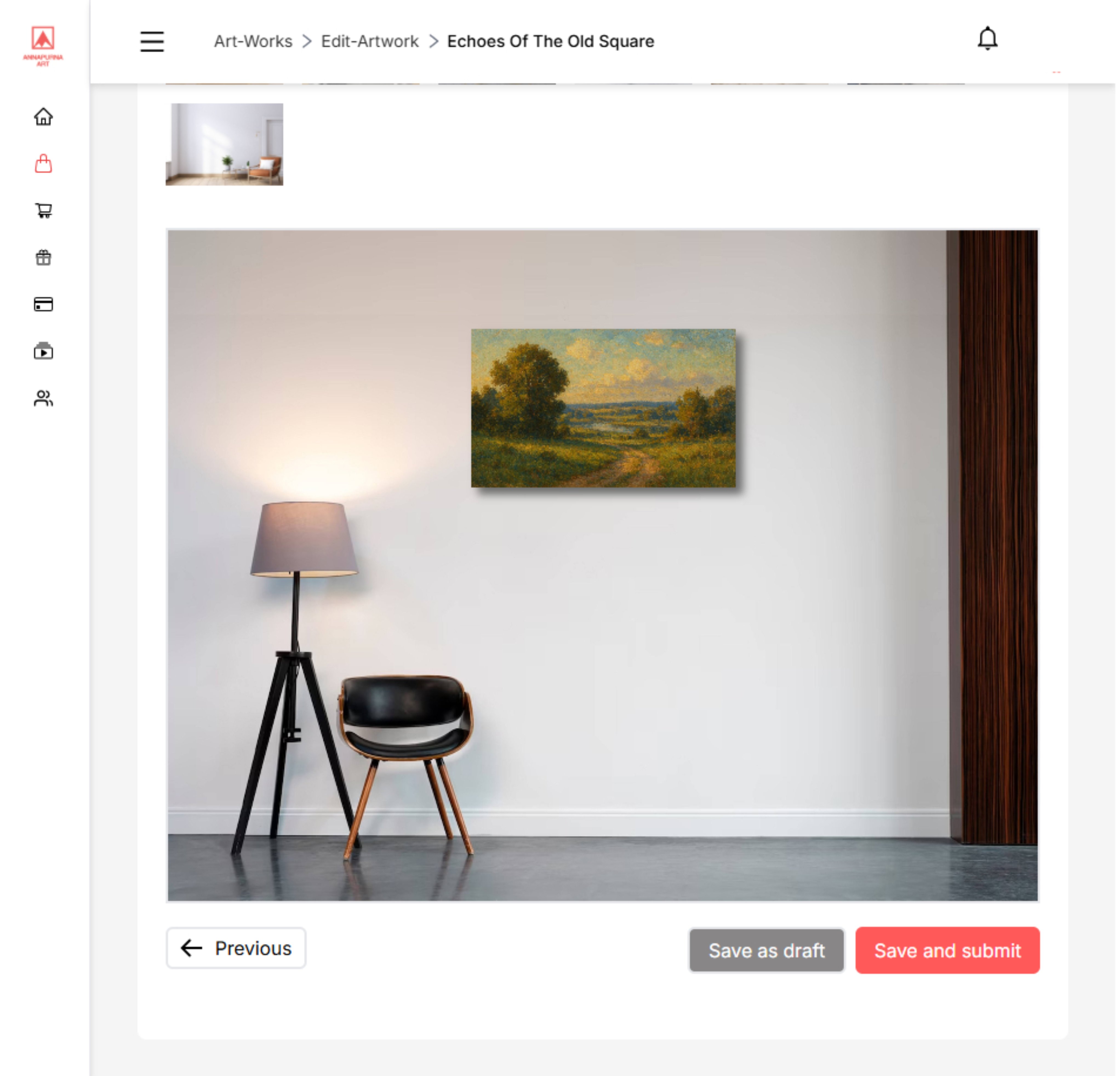
 Upload a background image for your artwork.
This image is used as the **Virtual Wall Preview**, allowing collectors to visualize how your artwork may look in an interior setting.
Once everything has been reviewed:
* Verify all artwork information
* Check pricing
* Confirm dimensions
* Click **Publish Artwork**
Your artwork will then become available for collectors on Annapurna Art.
Upload a background image for your artwork.
This image is used as the **Virtual Wall Preview**, allowing collectors to visualize how your artwork may look in an interior setting.
Once everything has been reviewed:
* Verify all artwork information
* Check pricing
* Confirm dimensions
* Click **Publish Artwork**
Your artwork will then become available for collectors on Annapurna Art.
 ***
## Before You Publish
Upload clear, well-lit images that accurately represent your artwork. You may upload **up to 5 images** showing different angles, textures, framing, and close-up details.
Double-check your title, pricing, dimensions, category selections, and shipping information before publishing. Accurate information helps collectors make confident purchasing decisions.
***
If you experience any issues while uploading your artwork or have questions about your listing, our support team is here to help.
[**Contact Support →**](https://annapurnaart.com/contact-us)
***
## Before You Publish
Upload clear, well-lit images that accurately represent your artwork. You may upload **up to 5 images** showing different angles, textures, framing, and close-up details.
Double-check your title, pricing, dimensions, category selections, and shipping information before publishing. Accurate information helps collectors make confident purchasing decisions.
***
If you experience any issues while uploading your artwork or have questions about your listing, our support team is here to help.
[**Contact Support →**](https://annapurnaart.com/contact-us)